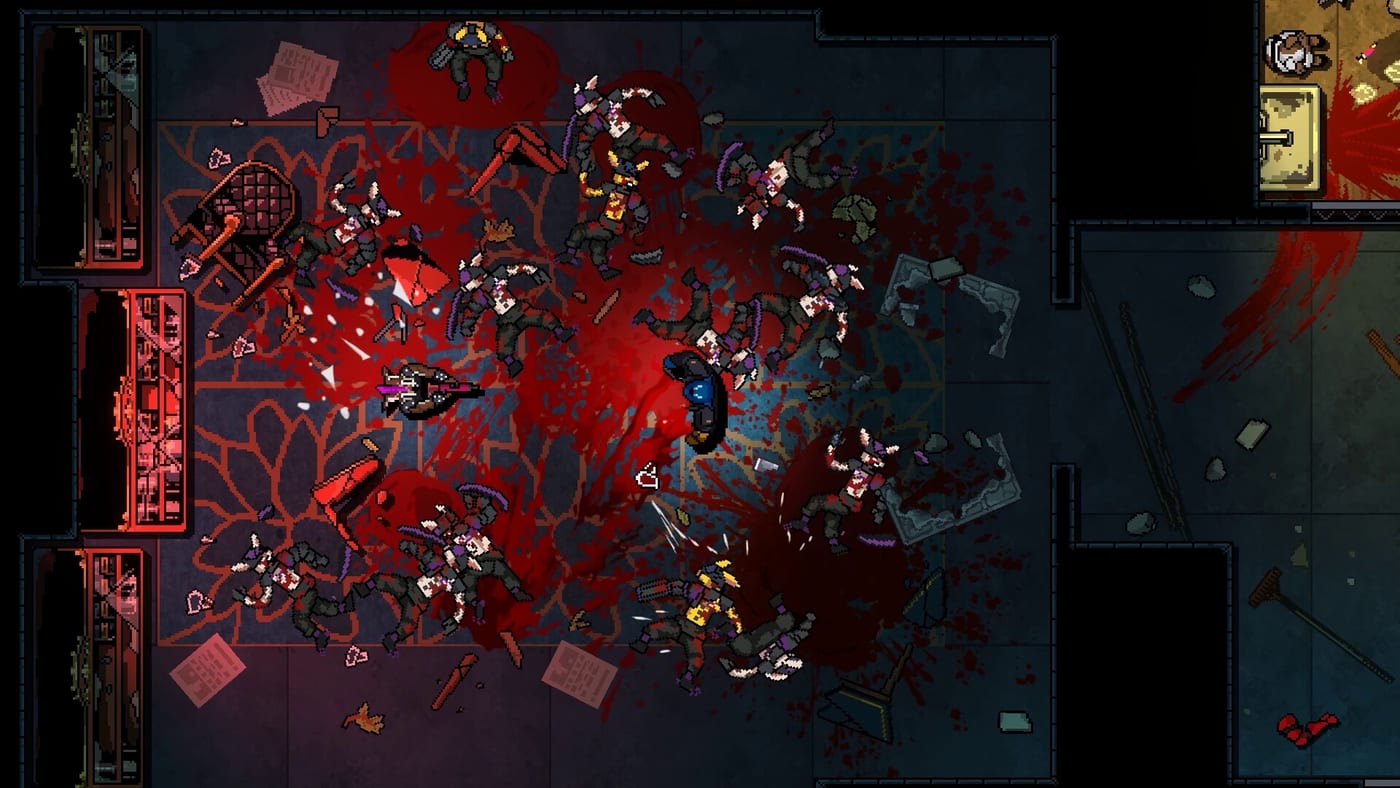
Kusan City of Wolves PC Controls
Build a keyboard and mouse layout that survives one-hit stages, Bolts farms, and boss pattern reading.
PC is the natural home for precision aim in Kusan: City of Wolves, CIRCLEfromDOT and PQube’s hardcore top-down shooter launching July 30, 2026. The Steam demo lets you stress-test keyboard and mouse before the full 54-stage campaign. This page focuses on binding philosophy, rebinding workflows, and practical habits that keep War Hand punches, Quantum Knife throws, firearm fire, and parries from colliding under pressure. Pair it with the Controls Hub overview and the Console Controls page if you also play on DualSense, Xbox, or Switch.
Treat defaults as a draft, not scripture. Top-down shooters commonly place movement on WASD, aiming on the mouse, primary fire on left click, and contextual melee or specials on right click, Q, E, F, or mouse side buttons. Confirm every label inside your installed demo options menu, because patch notes and regional builds can rename prompts. Your goal is a layout where the fingers that handle movement never abandon WASD while the mouse hand owns aim, fire, and high-frequency blade work. If you must lift a finger from movement to punch or parry, that bind belongs elsewhere.
Priority remaps for Kusan combat. First, isolate dodge or dash on a key you can mash without looking—Space, Left Ctrl, or a thumb mouse button are common choices. Second, put parry on a crisp, low-travel key such as F, Mouse 4, or Left Alt so you can answer telegraphed swings without breaking aim. Third, keep Quantum Knife on a dedicated mouse button or close keyboard key so auto-targeting throws remain part of your rhythm rather than a menu hunt. Fourth, place War Hand on a different key from knife and fire; the steel fist clears debris and finishers, and mistaking it for a gunshot in a kingpin arena is an expensive restart. Fifth, ensure reload, interact, and upgrade confirm do not sit on the same key as combat essentials.
Aim feel decides S-Rank potential. Start with a moderate mouse DPI and in-game sensitivity, then adjust until 180-degree flicks in tight alleys are controllable and micro-corrections for knife lineups still feel fine. Disable mouse acceleration in Windows if you chase consistent muscle memory. Cap frame rate or enable V-Sync only if tearing distracts you; stability matters more than chasing numbers during one-hit rooms. If your mouse pad is small, lower sensitivity slightly and practice circle-strafing around packs while tracking the highest-threat enemy. Quantum Knife rewards positioning more than panic spam—stand where the auto-target cone can see the priority target before you throw.
Rebinding tips that save hours later. Change one cluster at a time, then replay the same demo encounter three times before changing another cluster. Write your final layout in a note so a settings reset after a patch does not wipe progress. Avoid binding critical combat actions exclusively to keys that conflict with Steam Overlay, GPU overlays, or browser habits if you stream. Test pause and menu navigation after every remap so Bolts upgrade screens remain safe mid-run. If you use a keypad or left-handed mouse, mirror the same priorities: movement cluster intact, fire and knife on the pointing device, War Hand and parry on distinct, reachable inputs.
Practice drills for PC players. Clear a demo room using only guns and movement until pathing feels clean. Add Quantum Knife on every high-value target. Add War Hand only when an obstacle or finisher window appears. Finally, force yourself to parry at least one attack per room. This staged drill exposes which binds still feel late. When bosses enter the picture—see the Boss Guide for DJ Garak and Hoban pattern framing—repeat the drill in open arenas where camera space is larger and panic inputs are more likely.
Connect PC controls to progression systems. Clean inputs earn stylish clears, stylish clears earn more Bolts, and Bolts fund the loadouts covered in Loadout Builds and War Hand Upgrades. Review the Weapons Tier List only after you can execute without hunting keys; tier advice cannot fix a crowded keyboard. For campaign routing, keep Early Chapters and Stages Overview open in a second window while you refine sensitivity for new enemy densities.
Common PC failure modes. Binding War Hand next to fire causes accidental punches during spray. Binding parry on a stretch pinky key causes late blocks. Over-high sensitivity turns Quantum Knife into wild throws that waste windows. Overlay hotkeys that share combat keys create mystery deaths that look like game bugs. Fix these before grinding S-Ranks across the 54 hand-crafted stages. Remember the release is still upcoming on July 30, 2026—use the live demo as your laboratory, then carry the same layout into launch day so the hardcore one-mistake rule is about reading the city, not reading your keyboard.
Frequently Asked Questions
Quick answers to the most common questions.
What should I remap first on PC?
Dodge, parry, Quantum Knife, and War Hand. Confirm labels in the demo options, keep them off the fire key, and retest the same room after each change.
Is mouse aim required for S-Rank?
Not required, but mouse aim usually helps knife lineups and boss weak windows. Controller on PC is fine if your binds and sensitivity are consistent.
How do I stop accidental War Hand presses?
Move War Hand off any neighbor of primary fire and practice a gun-only clear, then reintroduce the fist only for obstacles and finishers.
Should PC and console layouts match?
Match the role of each action even if the physical buttons differ. See [Console Controls](/controls/console/) for pad-specific notes.
Where do I go after controls feel solid?
Move to [Loadout Builds](/builds/loadouts/) and [Early Chapters](/walkthrough/early-chapters/) so your remaps support Bolts farming and chapter pacing.